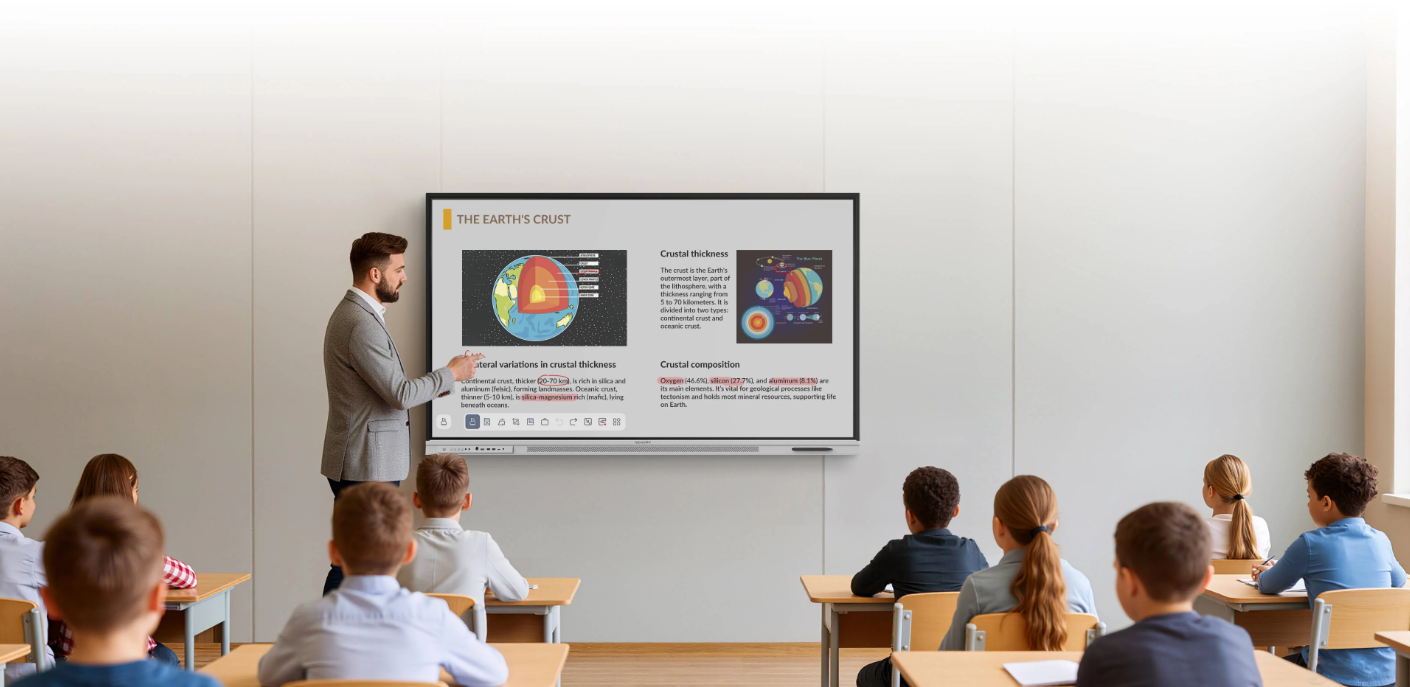
Classroom display choices affect how teachers explain ideas, how students participate, and how smoothly lessons move between activities. A screen that works in a small discussion room may not suit a larger teaching space. Schools should compare display size, touch response, viewing conditions, and app compatibility against the way each classroom is used.
Nework is a smart audiovisual display and collaboration brand headquartered in California, with more than 20 years of professional AV industry experience. Its NewBoard range supports interactive teaching and shared work. Schools reviewing the NewBoard E series for education can explore the product range and discuss classroom needs with the team before deciding on a configuration.
Start with Classroom Size and Seating
Display size should follow the room layout rather than a general rule. Measure the distance between the screen and the farthest student seats. Consider the width of the teaching wall, the height of the display, and whether desks face forward or are arranged in groups. The screen should fit the room without crowding boards, storage, or teaching materials. Ask teachers to show a typical slide and a worksheet during the size review, since fine details may be harder to read than large headings.
Room capacity matters. A compact classroom may need a different screen size from a lecture room. In rooms with movable desks, students may view the display from different angles. Check whether text and diagrams remain readable from the back and sides.
Touch Interaction Should Match the Lesson
Touch functions help students solve problems, label diagrams, sort information, and contribute ideas. Teachers can move between explaining and demonstrating without relying on a separate mouse or keyboard for every action. Before purchase, test writing, erasing, selecting objects, and switching lesson materials.
Some activities require several students to contribute. Ask how the display handles shared writing and whether users can add marks without disrupting the lesson. For younger learners, simple controls can reduce time spent learning the interface. Include staff training in deployment planning. It is also useful to test common gestures with teachers who have different levels of digital confidence.
Visibility Depends on Light and Content
A screen can appear clear in one room and harder to read in another. Check natural light from windows, ceiling lights, and reflections on the display surface. If sunlight falls directly on the teaching wall, schools may need to adjust the screen location, window coverings, or classroom layout. Testing during normal teaching hours gives a more realistic view than checking an empty room.
Content design matters too. Small labels, dense tables, and low-contrast colors can be hard to follow. Teachers should use legible text, clear contrast, and diagrams that remain understandable when enlarged. During a demonstration, display a typical lesson file and ask staff at the back to read it.
App Compatibility Shapes Daily Use
List the digital tools teachers already use before selecting a display. These may include presentation software, browser-based activities, and collaborative whiteboards. Check whether the required apps are available or can be accessed through connected devices. Confirm how teachers switch between apps without losing work.
For group projects, a shared canvas can help students collect ideas and develop them together. The NewBoard E series for education can be evaluated against workflows involving apps such as Miro, Microsoft Whiteboard, and Lucidspark. Teammates can join a shared canvas from their own devices, add comments, and build on ideas in real time. Confirm app access, account requirements, and saving options for the school’s intended setup.
Plan for Deployment and Ongoing Support
Plan for wall strength, mounting height, power access, network coverage, and cable routing. Decide who will manage accounts, update apps, and help teachers with classroom issues. A pilot in one representative room can reveal problems before a wider order.
Total cost includes more than the initial purchase. Buyers should compare installation work, staff training, accessories, expected maintenance, and the process for requesting technical support. Ask suppliers to clarify warranty coverage, response channels, and which tasks school IT staff must handle. Clear answers help procurement teams compare proposals on the same basis. Schools should also check whether support is available during their operating hours and how software updates are communicated.
Make Collaboration Useful Beyond the Lesson
Interactive displays can also support staff meetings, planning sessions, and parent presentations. Shared notes can help teams review lesson plans or prepare school events. Check whether work can be saved in the chosen app and reopened later, and clarify where files are stored and who can access them.
Nework reports that more than 25,000 professional teams use its smart whiteboards. The collaboration workflow supports real-time participation, with ideas saved in the selected app for later use. A demonstration can help schools assess whether it fits their teaching routines, privacy practices, and existing software.
Choose Against Classroom Priorities
A suitable interactive display is not defined by size or touch alone. Room layout, visibility, lesson activities, app access, installation, and after-sales support all affect day-to-day use. Schools can create a short checklist, test a sample lesson, and involve teachers and IT staff before comparing quotations.
For school buyers, the goal is a setup teachers can use confidently and maintain without unnecessary disruption. A clear checklist helps procurement teams resolve questions before ordering and assess whether the display fits their classrooms and collaboration plans.